
What you’ll need
- Your Statista API Key
- Claude Desktop installed on your PC
- Node.js installed (we’ll help you install this)
Step-by-step instructions
Install Node.js
- Open your web browser
- Go to: https://nodejs.org/
- Click the big green button that says “LTS” (Recommended for Most Users)
- Find the downloaded file in your Downloads folder and double-click it
- Click “Next” on everything until it finishes installing
- Restart your computer
Get your Statista API Key
Keep this somewhere safe — you’ll need it in a moment!
3
Open Claude's configuration folder
- Press
Windows Key + Ron your keyboard (this opens the “Run” box) - Type exactly:
%APPDATA%\Claude - Press
Enter— a folder will open
4
Create or edit the configuration file
Look for a file called
claude_desktop_config.json.If the file EXISTS:
Right-click it → Open with → NotepadIf the file DOESN’T exist:- Right-click in the empty space → New → Text Document
- Name it:
claude_desktop_config.json - Open it with Notepad
5
Add your configuration
Delete everything in the file (if there’s anything there), then paste this:
6
Add your API key
Find this line near the bottom:
"API_KEY": "INSERT KEY HERE"Replace INSERT KEY HERE with your actual Statista API key from Step 2. For example, if your key is sk_1234abcd5678efgh, it should look like:Important: Keep the quotes ("") around your key.
7
Save the file
- In Notepad, click File → Save as .js
- Close Notepad
8
Restart Claude Desktop
- Completely close Claude Desktop (hard exit under “Files”)
- Open Claude Desktop again
9
Test it!
Look for the Statista icon or tools indicator in Claude — this means it’s connected!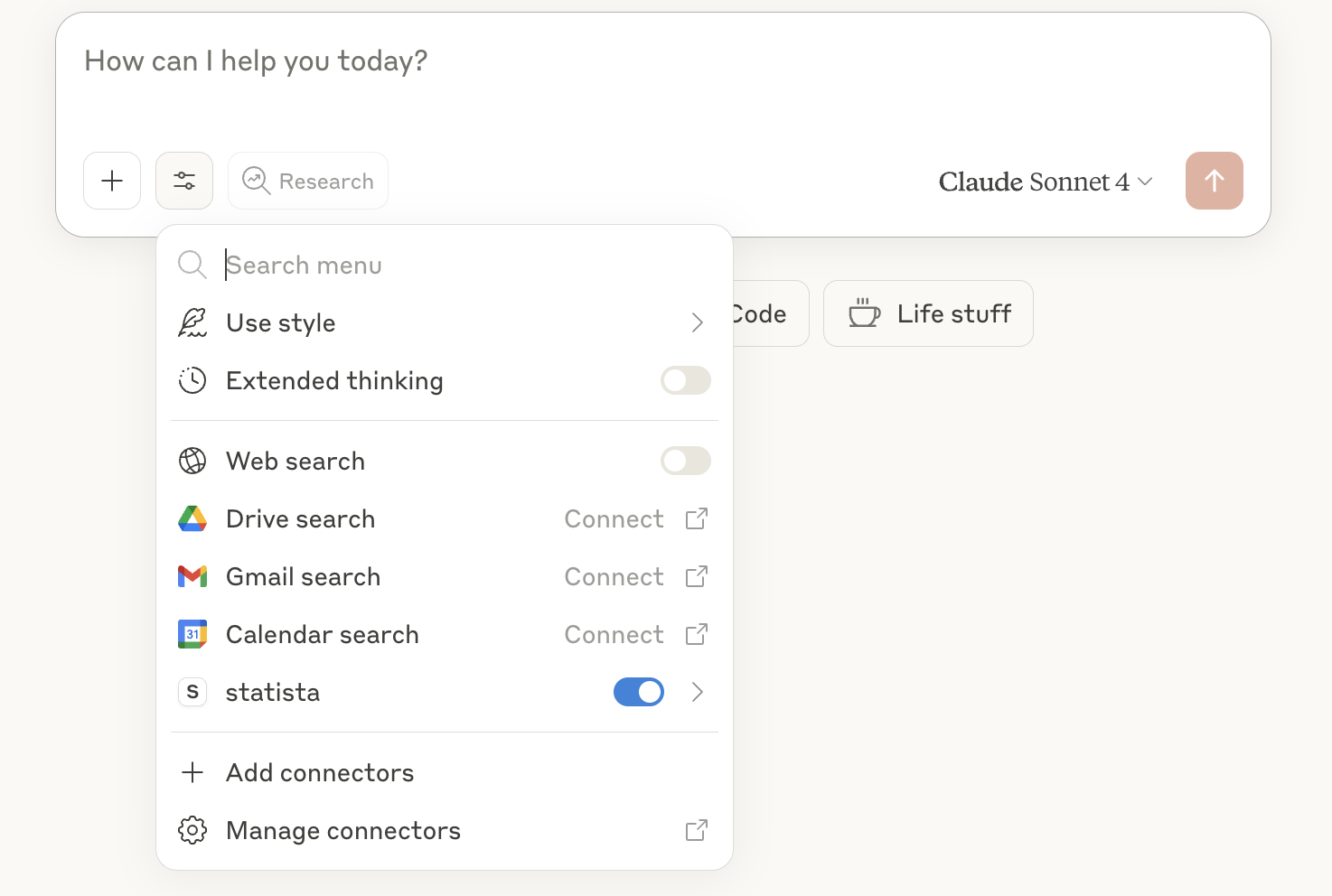
Make sure Statista is toggled on as a connector and then ask a Statista-related question.
If the connection has been properly enabled, Claude will fetch live data from Statista for you!
Troubleshooting
If you get an error about Node.js
If you get an error about Node.js
- Make sure you installed Node.js from Step 1
- Make sure you restarted your computer after installing Node.js
- Try opening Claude again
If nothing happens
If nothing happens
- Make sure you completely closed and reopened Claude
- Check that your API key is correct (no extra spaces)
- Make sure the quotes are in the right places
If you see "invalid JSON"
If you see "invalid JSON"
- Check that you have all the curly braces
{and} - Check that every line except the last one in each section has a comma
, - Try copying the code again from this document