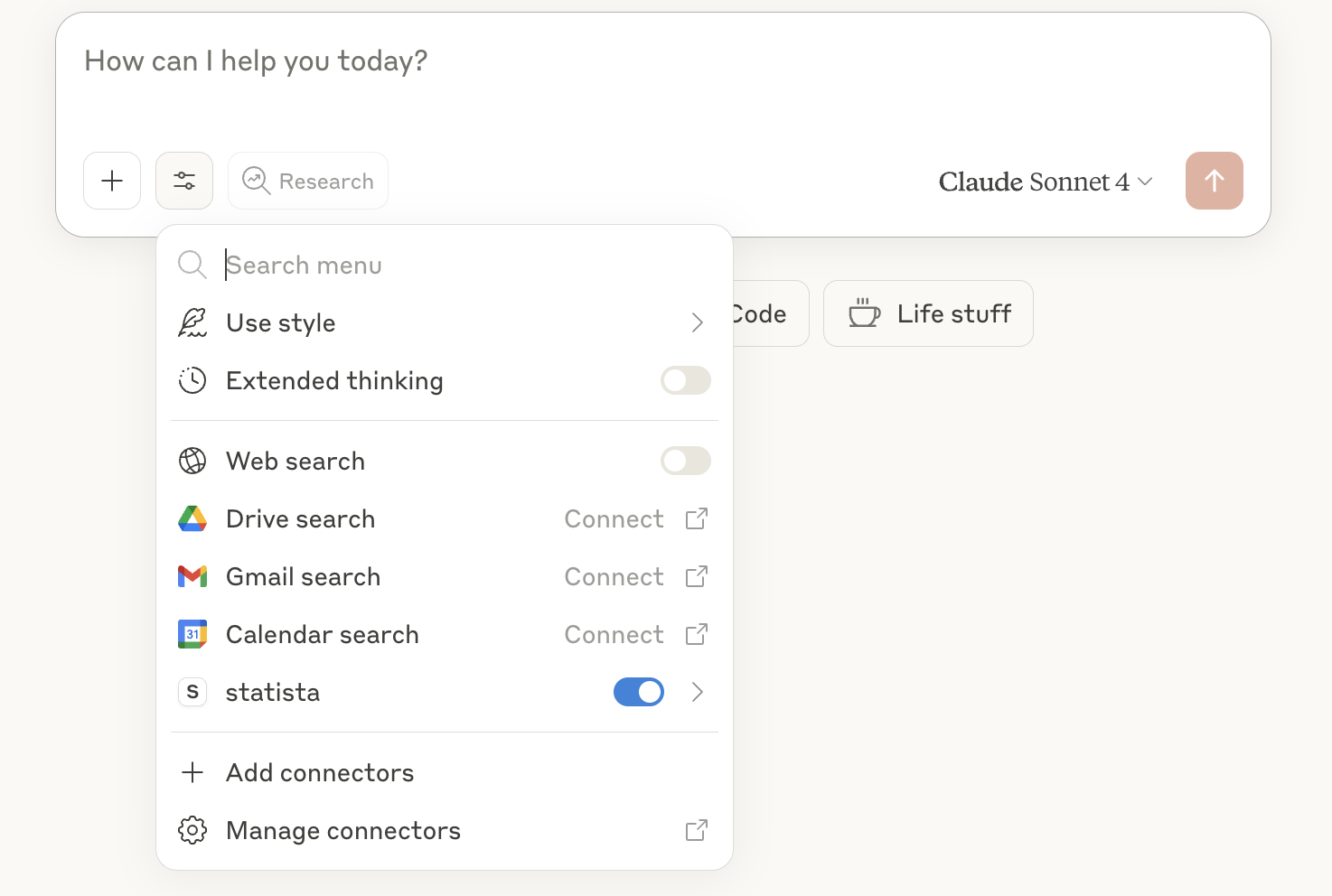
Install Claude Desktop
Install Claude Desktop
Install Claude Desktop (important that it’s the desktop version).
Install Node.js
Install node.js, needed for the
mcp-remote integration.3
Create an account
If you don’t already have one, create an account.
4
Open Claude Desktop
Launch the app to get started.
Modify configuration file
1
Open Developer settings
Under Settings, go to Developer.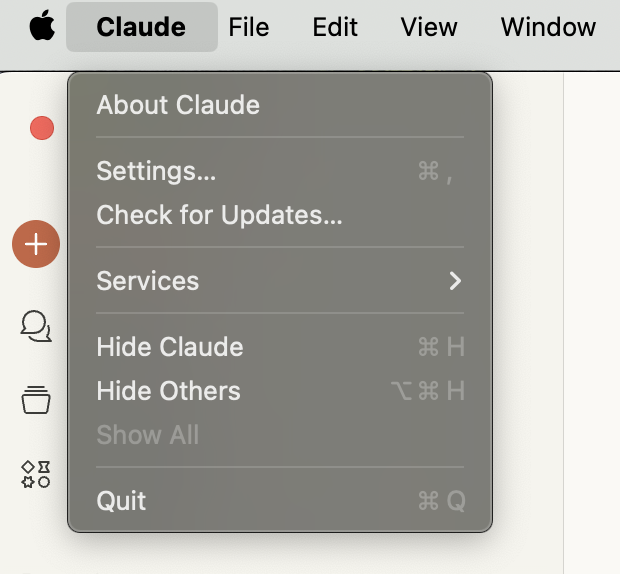
2
Edit the config
Click Edit Config.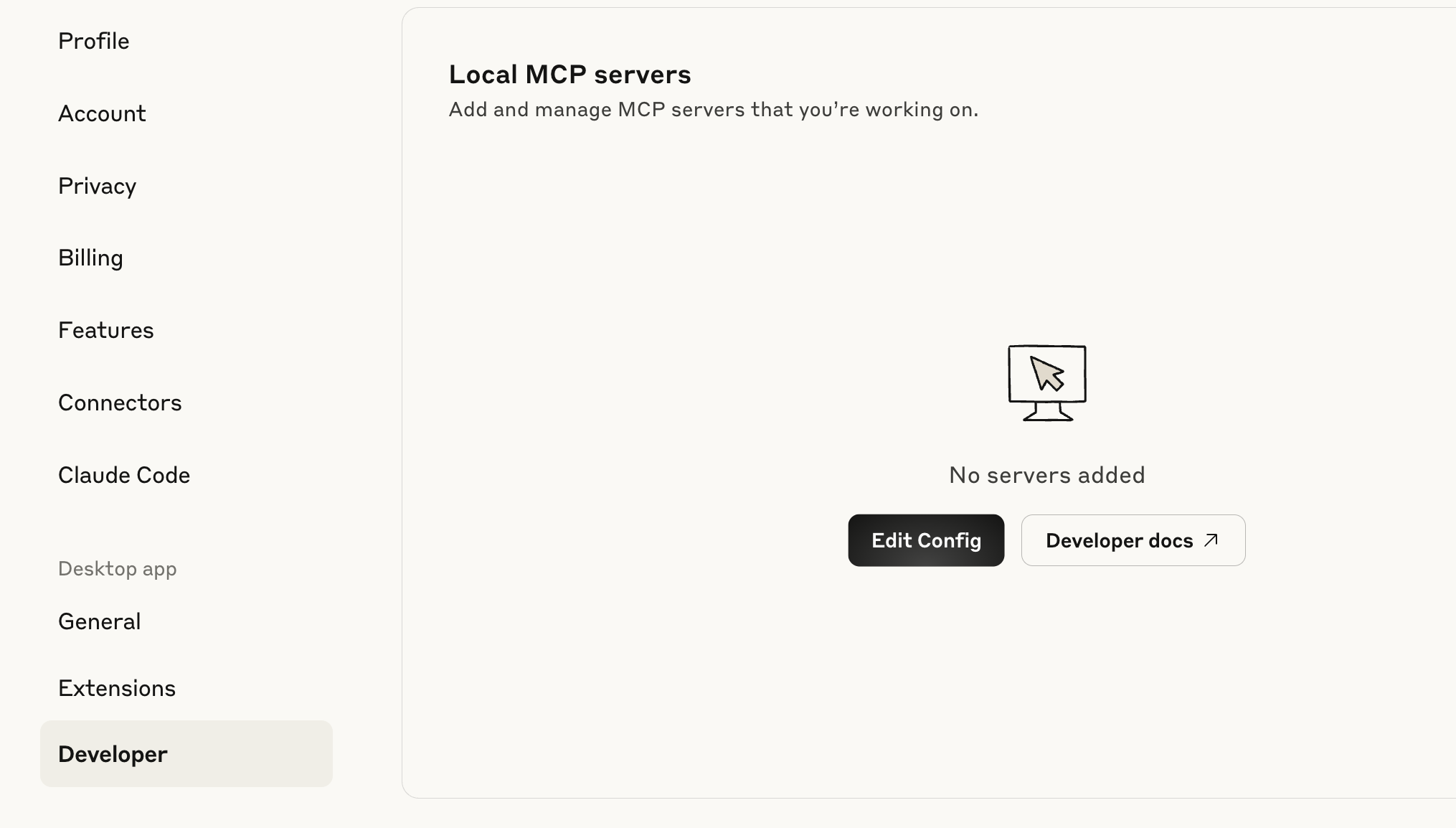
3
Open the config file
Open the
claude_desktop_config.json file in a text editor.Add the Statista server
Copy/paste the snippet below into the file, replacing
YOUR_API_KEY with the provided API Key.5
Save the file
Save your changes.
Use the MCP Server in Claude Desktop
1
Restart Claude Desktop
Once your configuration file is successfully modified and saved, close down Claude Desktop and open it again.
2
Confirm Statista is enabled
Now, under Search and tools you should see statista enabled.