> ## Documentation Index
> Fetch the complete documentation index at: https://docs.platform.statista.ai/llms.txt
> Use this file to discover all available pages before exploring further.
# Connect to Claude Desktop (Mac)
> Connect the Statista MCP Server to Claude Desktop on Mac
## Install Claude Desktop
Install [Claude Desktop](https://claude.ai/download) (important that it's the desktop version).
Install [node.js](https://nodejs.org/en/download), needed for the `mcp-remote` integration.
If you don't already have one, create an account.
Launch the app to get started.
## Modify configuration file
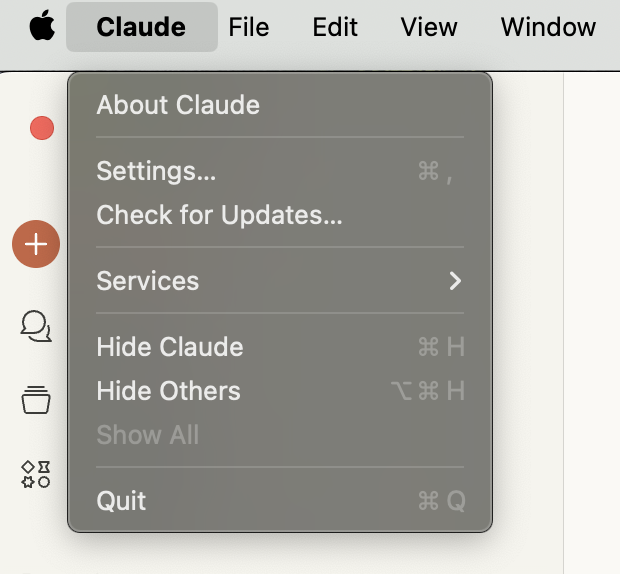
Under **Settings**, go to **Developer**.
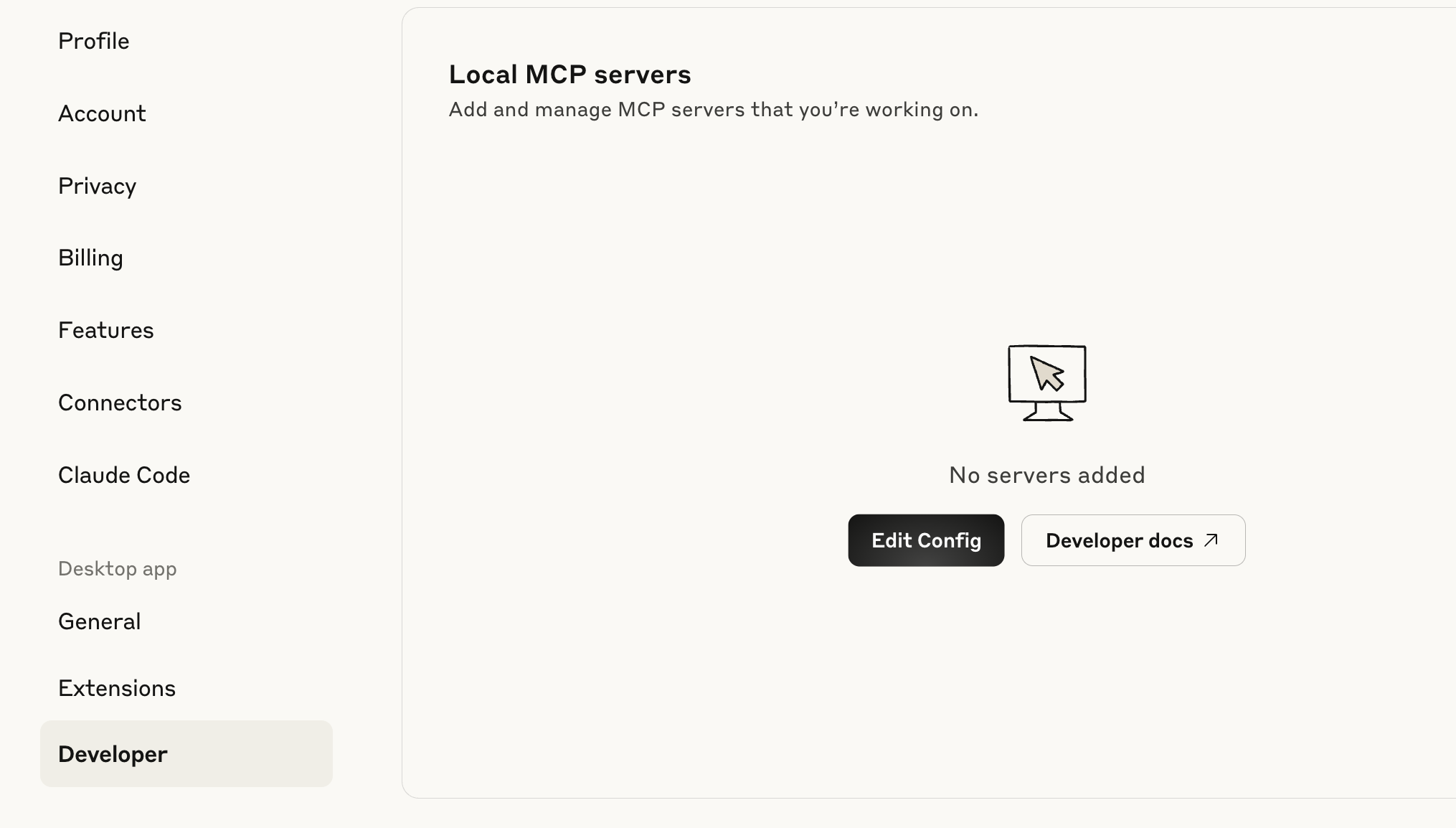
 Click **Edit Config**.
 Open the `claude_desktop_config.json` file in a text editor.
Copy/paste the snippet below into the file, replacing `YOUR_API_KEY` with the provided API Key.
```.json theme={null}
{
"mcpServers": {
"statista": {
"command": "npx",
"args": [
"-y",
"mcp-remote",
"https://api.statista.ai/v1/mcp",
"--transport",
"http-only",
"--header",
"x-api-key: ${API_KEY}"
],
"env": {
"API_KEY": "YOUR_API_KEY"
}
}
}
}
```
Save your changes.
## Use the MCP Server in Claude Desktop
Once your configuration file is successfully modified and saved, close down Claude Desktop and open it again.
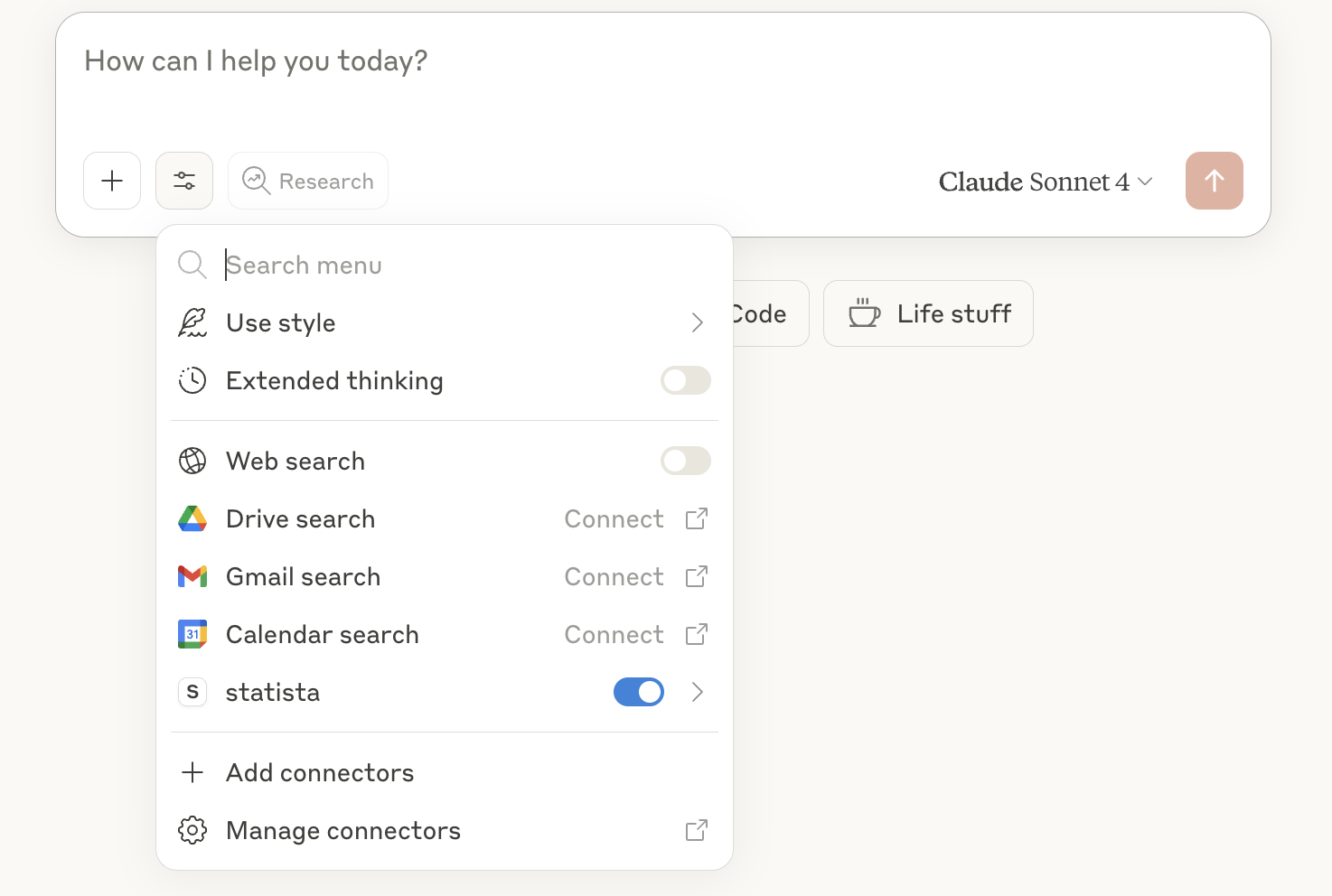
Now, under **Search and tools** you should see **statista** enabled.
Open the `claude_desktop_config.json` file in a text editor.
Copy/paste the snippet below into the file, replacing `YOUR_API_KEY` with the provided API Key.
```.json theme={null}
{
"mcpServers": {
"statista": {
"command": "npx",
"args": [
"-y",
"mcp-remote",
"https://api.statista.ai/v1/mcp",
"--transport",
"http-only",
"--header",
"x-api-key: ${API_KEY}"
],
"env": {
"API_KEY": "YOUR_API_KEY"
}
}
}
}
```
Save your changes.
## Use the MCP Server in Claude Desktop
Once your configuration file is successfully modified and saved, close down Claude Desktop and open it again.
Now, under **Search and tools** you should see **statista** enabled.
 You're good to go! Now you can do market research with Statista and Claude Desktop on Mac 🎉