> ## Documentation Index
> Fetch the complete documentation index at: https://docs.platform.statista.ai/llms.txt
> Use this file to discover all available pages before exploring further.
# Connect to Claude Desktop (Windows)
> Connect the Statista MCP Server to Claude Desktop on Windows
## What you'll need
* Your Statista API Key
* Claude Desktop installed on your PC
* Node.js installed (we'll help you install this)
## Step-by-step instructions
1. Open your web browser
2. Go to: [https://nodejs.org/](https://nodejs.org/)
3. Click the big green button that says "LTS" (Recommended for Most Users)
4. Find the downloaded file in your Downloads folder and double-click it
5. Click "Next" on everything until it finishes installing
6. Restart your computer
Keep this somewhere safe — you'll need it in a moment!
* Press `Windows Key + R` on your keyboard (this opens the "Run" box)
* Type exactly: `%APPDATA%\Claude`
* Press `Enter` — a folder will open
Look for a file called `claude_desktop_config.json`.
**If the file EXISTS:**
Right-click it → Open with → Notepad
**If the file DOESN'T exist:**
* Right-click in the empty space → New → Text Document
* Name it: `claude_desktop_config.json`
* Open it with Notepad
**Delete everything** in the file (if there's anything there), then paste this:
```json theme={null}
{
"mcpServers": {
"statista": {
"command": "C:\\PROGRA~1\\nodejs\\npx.cmd",
"args": [
"-y",
"mcp-remote",
"https://api.statista.ai/v1/mcp",
"--transport",
"http-only",
"--header",
"x-api-key: ${API_KEY}"
],
"env": {
"API_KEY": "INSERT KEY HERE"
}
}
}
}
```
Find this line near the bottom:
`"API_KEY": "INSERT KEY HERE"`
Replace `INSERT KEY HERE` with your actual Statista API key from Step 2. For example, if your key is `sk_1234abcd5678efgh`, it should look like:
```json theme={null}
"API_KEY": "sk_1234abcd5678efgh"
```
Important: Keep the quotes ("") around your key.
* In Notepad, click File → Save as .js
* Close Notepad
* Completely close Claude Desktop (hard exit under "Files")
* Open Claude Desktop again
Look for the Statista icon or tools indicator in Claude — this means it's connected!
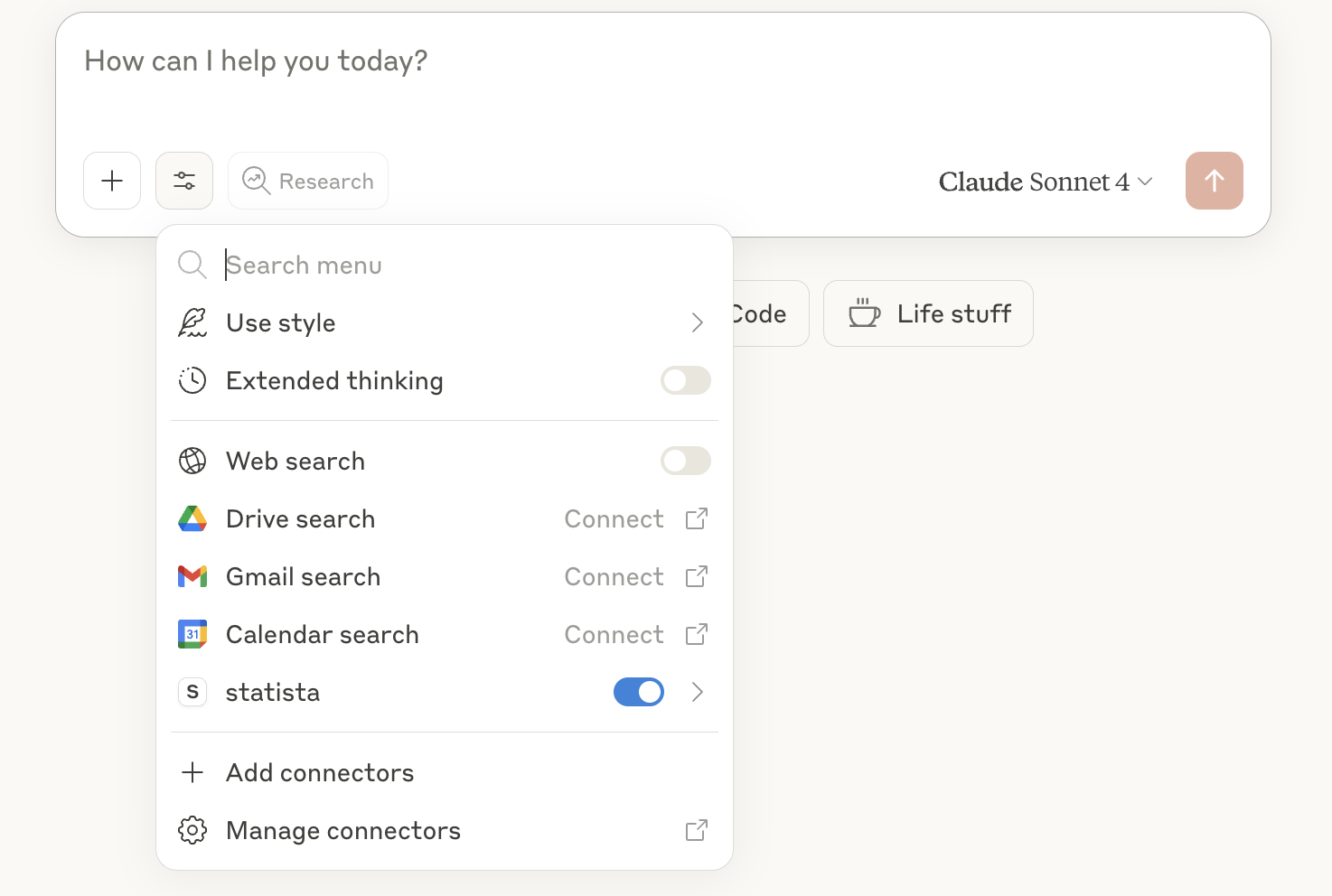 Make sure Statista is toggled on as a connector and then ask a Statista-related question.
If the connection has been properly enabled, Claude will fetch live data from Statista for you!
## Troubleshooting
* Make sure you installed Node.js from **Step 1**
* Make sure you restarted your computer after installing Node.js
* Try opening Claude again
* Make sure you completely closed and reopened Claude
* Check that your API key is correct (no extra spaces)
* Make sure the quotes are in the right places
* Check that you have all the curly braces `{` and `}`
* Check that every line except the last one in each section has a comma `,`
* Try copying the code again from this document
Make sure Statista is toggled on as a connector and then ask a Statista-related question.
If the connection has been properly enabled, Claude will fetch live data from Statista for you!
## Troubleshooting
* Make sure you installed Node.js from **Step 1**
* Make sure you restarted your computer after installing Node.js
* Try opening Claude again
* Make sure you completely closed and reopened Claude
* Check that your API key is correct (no extra spaces)
* Make sure the quotes are in the right places
* Check that you have all the curly braces `{` and `}`
* Check that every line except the last one in each section has a comma `,`
* Try copying the code again from this document